
A surprising amount of daily work happens through a keyboard. Emails, reports, messages, and notes all depend on fast and comfortable text input. Average speed for most computer users sits around 40 words per minute, while experienced users often reach much higher numbers.
That difference matters more than it sounds. If your daily routine involves writing hundreds or thousands of words, small improvements in keyboard responsiveness can save time and reduce frustration.
Fine tuning a few system settings can change how every keystroke behaves. Response speed, correction tools, feedback signals, and input software all affect the writing experience. Once these elements match your habits, working on a computer becomes noticeably smoother.
Table of Contents
Understanding how keyboard behavior affects productivity
Most people assume keyboard performance depends only on hardware quality. In reality, operating systems include several adjustable settings that influence how quickly characters appear and how the keyboard reacts to key presses.
Large studies of text input behavior show that most computer users produce between 30 and 60 words per minute, while trained professionals can reach far higher speeds with accuracy.
A few configuration choices shape this experience every day.
Before adjusting anything, it helps to know the main factors that influence keyboard responsiveness:
- Key repeat delay, which determines how long a key must be held before repeating
- Repeat rate, which controls how quickly characters repeat once triggered
- Input software, which interprets characters and suggestions
- Correction tools that automatically fix or replace words
When these elements align with your natural rhythm, writing becomes more fluid and less tiring.
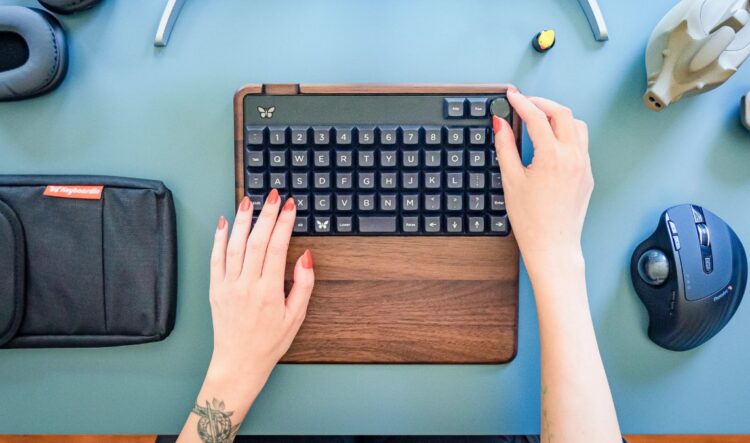
Selecting a responsive input method
The software responsible for interpreting keystrokes has a strong impact on everyday writing. Modern input engines use predictive technology, language models, and adaptive correction to speed up text entry.
Some tools focus specifically on improving writing flow by anticipating common phrases and reducing manual corrections. One example is available on the 搜狗输入法官网 (Sogou input method), where intelligent input software helps users write quickly and accurately. AI learns from your habits and your style, as a result everything is done faster and with no mistakes.
Choosing a capable input method can noticeably improve daily work, particularly for users who write frequently.
Adjusting repeat delay and repeat rate
Two system settings influence how quickly characters repeat when a key is held down. These options are often hidden in accessibility or keyboard settings.
Repeat delay determines how long the system waits before a character begins repeating. Repeat rate controls the speed of repetition once it begins.
If the delay is too long, editing actions such as deleting or moving through text feel slow. If the rate is too high, mistakes may multiply when keys are pressed slightly longer than intended.
The advantages of a well balanced configuration include:
- Faster deletion using the backspace key
- Quick cursor navigation using arrow keys
- More responsive editing during long writing sessions
Important note
Shorter delays and faster repeat rates allow the keyboard to respond more quickly to held keys, improving overall responsiveness.
Testing several combinations usually reveals the most comfortable balance.
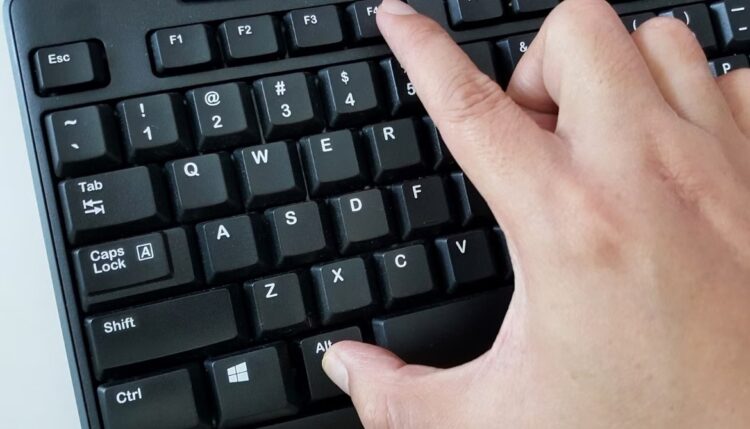
Using accessibility tools to prevent accidental keystrokes
Operating systems include accessibility features designed to help users manage input accuracy. Even people without accessibility needs often benefit from these tools.
Some features filter unintended presses or slow down repeated characters. Others modify how modifier keys behave.
Several settings can improve writing accuracy:
- Filter keys that ignore extremely quick accidental presses
- Sticky keys that simplify key combinations such as shortcuts
- Toggle indicators that confirm when keys like Caps Lock are active
Did you know?
Keyboard settings related to accessibility were originally developed to help users with motor impairments, yet many office workers now use them to reduce input mistakes.
When configured properly, these options help prevent errors during fast writing sessions.
Improving feedback and tactile response
The way a keyboard feels and sounds can influence how comfortably people write. Feedback helps users confirm each keystroke without looking at the keyboard.
Several types of feedback play a role in maintaining rhythm.
| Feedback type | Benefit |
| Mechanical sound | Reinforces rhythm and confirmation |
| Key travel distance | Improves tactile response |
| Visual indicators | Highlight mistakes quickly |
| Audio signals | Provide confirmation without looking |
After adjusting keyboard settings, test the system during normal work tasks. If input feels inconsistent or hard to track, increasing tactile or audio feedback may help restore rhythm.
This adjustment becomes especially useful during long writing sessions.

Optimizing language tools and prediction settings
Modern keyboards often include built in language features designed to reduce effort. These tools rely on predictive models that learn from previous writing patterns.
Prediction engines can automatically complete words or suggest phrases. When tuned correctly, these tools reduce manual input and improve accuracy.
Consider reviewing several language options inside keyboard settings:
- Word prediction suggestions for faster sentence completion
- Automatic correction for common spelling mistakes
- Custom text replacements for frequently used phrases
For example, many professionals create shortcuts that expand short abbreviations into longer expressions. A simple two letter code can insert an entire email signature or standard reply.
These adjustments reduce repetitive work and keep writing sessions efficient.
Creating a comfortable writing workflow
Configuration settings work best when combined with good habits. A comfortable setup prevents fatigue and keeps productivity steady throughout the day.
Research shows that physical keyboard input still provides the fastest text entry compared with many alternative input systems.
Several practical adjustments help maintain comfort:
- Keep wrists in a neutral position to reduce strain
- Position the screen at eye level to limit neck movement
- Use keyboard shortcuts to reduce reliance on the mouse
- Take short breaks to maintain accuracy and focus
These simple changes help maintain steady performance without excessive strain.
Small adjustments can transform everyday writing
Many people assume faster work requires new hardware or special training. In practice, simple configuration changes often make the biggest difference.
Keyboard responsiveness, predictive tools, and accessibility settings all influence how easily ideas become text on the screen. Adjusting these options requires only a few minutes but can noticeably improve comfort and speed.
Once the keyboard responds naturally to your habits, writing becomes smoother and more efficient. Over time, those small improvements accumulate into a faster and far more enjoyable daily workflow.